Menu

In ApplyCycle, staff edit the main menu under Site Configuration > Menu Items. Staff can reorder menu items by dragging them and saving the new order. Menu links can point to a site page selected by name or an external web address. Each item has a title, path, and description that staff can edit.

You can customize the main menu on your site. Go to Site Configuration->Menu Items.
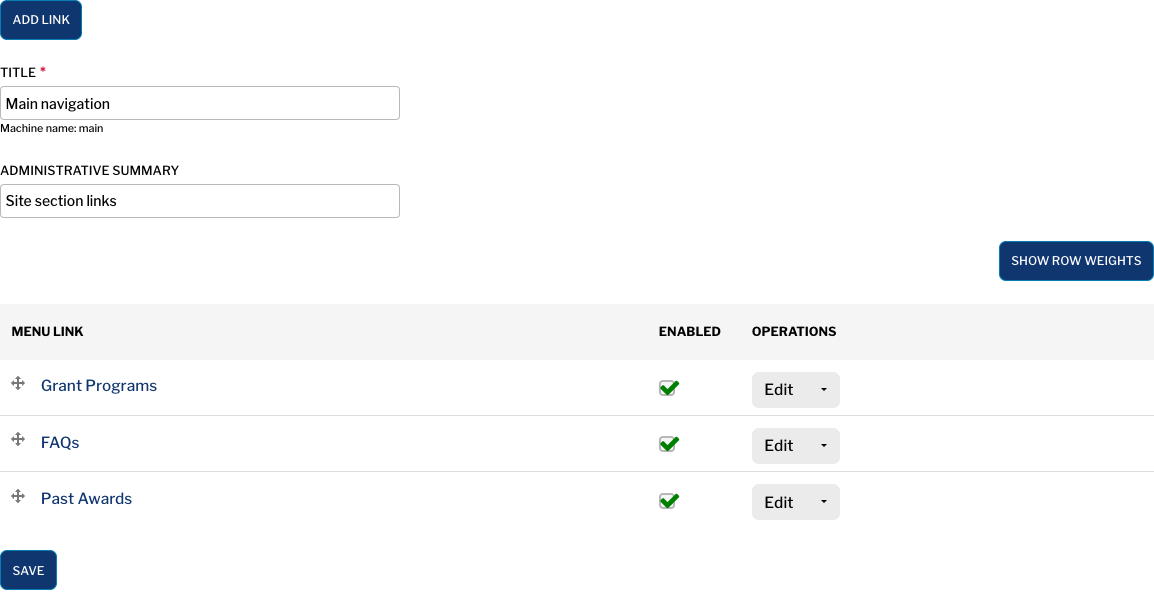
'Edit menu Main navigation' form with 'Grant Programs', 'FAQs' and 'Past Awards', enabled checkboxes and 'Edit' actions.
Figure 1. Viewing the links in 'Main navigation'.

Ordering the Menu Items

To change the order of items in the menu, grab the crosshairs icon next to the menu item name and drag it into position. Then press ‘Save.’

Adding a Menu Item

Press 'Add Link' on the Menu management page to add a new menu item. Fill in the Title you want to display in the menu and choose the page for the Link by typing in the title of a page.

You can also link to an external site by pasting an absolute URL into the Link field.

Editing a Menu Item

Edit a menu item you've added to change its title, path, or description.
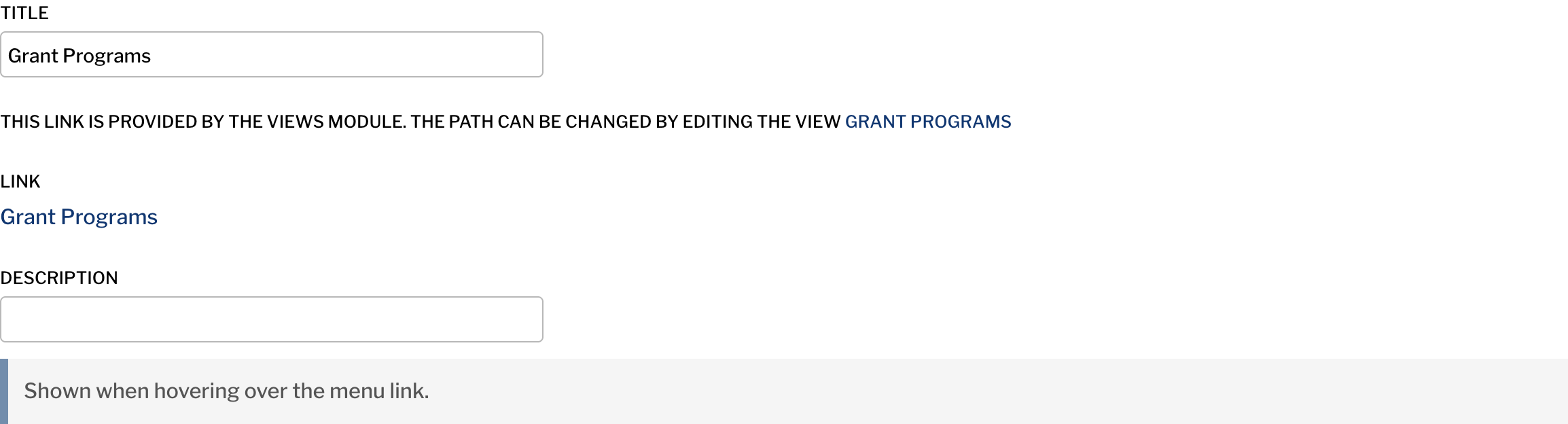
'Edit menu link' fields with 'Title' set to 'Grant Programs', its existing 'Link' and a blank 'Description'.
Figure 2. Viewing 'Title', 'Link' and 'Description' on an existing menu link's edit form.

Removing a Menu Item

You can uncheck 'Enabled' to disable a menu item. Menu items you've added to the site can be deleted entirely with the Delete button under the Operation column.